- Cryptocurrency
- By Gideon
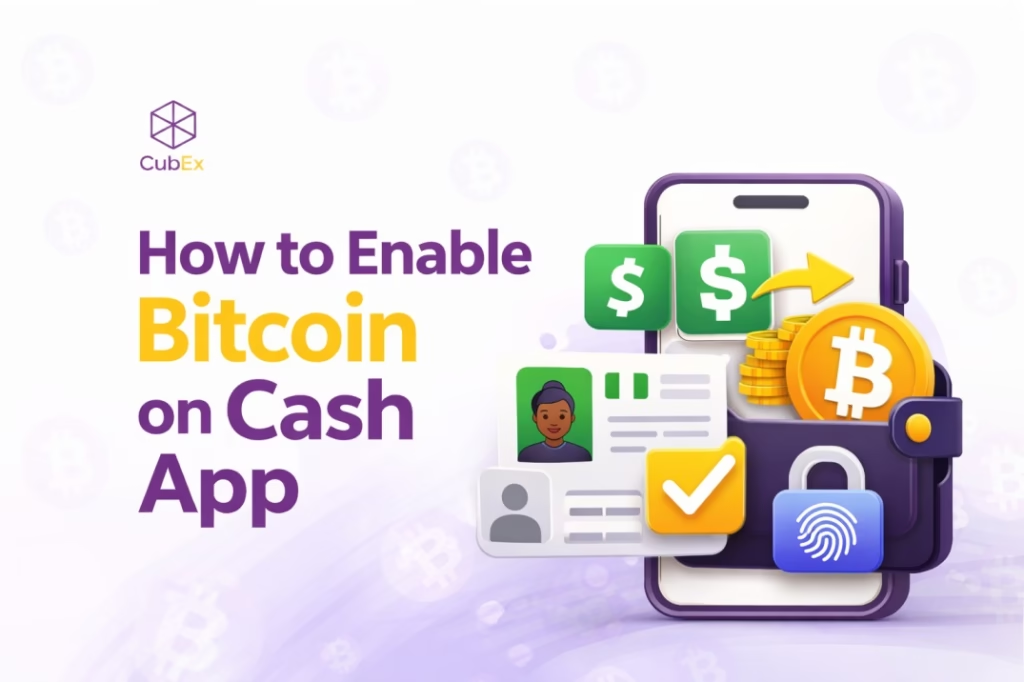
Cash App is more than just a way to send and receive money. It also lets you buy, sell, and hold Bitcoin right inside the app. But before you can start handling Bitcoin, you need to enable the Bitcoin feature and complete some steps.
In this post you’ll learn:
- What enabling Bitcoin on Cash App means
- Why verification is required
- A step-by-step guide to getting started
- What you need to enable bitcoin on cash app
Related Article:How to verify bitcoin on cash app
What Enable Bitcoin Means on Cash App
When people first download Cash App, they often expect the Bitcoin feature to work immediately. But Cash App treats Bitcoin differently from normal transfers, so the feature starts off locked for every new account.
Think of “Enable Bitcoin” as Cash App asking you to prove who you are before it opens the door to anything crypto-related.
When you tap that option, Cash App is basically saying:
- Confirm your identity so we know it’s really you.
- Let us unlock Bitcoin deposits and withdrawals on your account.
- We’ll activate a Bitcoin wallet for you inside the app.
Once those steps are complete, the Bitcoin section becomes fully active. At that point you can:
- buy Bitcoin
- sell Bitcoin
- send BTC to another wallet
- receive BTC from someone else
Until your identity is approved, Cash App keeps all Bitcoin actions switched off. It’s a safety measure, not a glitch.
What You Need to Enable Bitcoin on Cash App
Before the Cash App unlocks the Bitcoin feature, it checks a few things in the background. This is to help the app confirm who is using the account, how that account will be funded, and if it’s safe to allow crypto transactions.
Here’s what you need in place before the Bitcoin option becomes available:
1. A Complete Cash App Account
Cash App has to recognise your account as genuine.
This means:
- your phone number or email must be confirmed
- you should be able to log in normally
- your account information should be consistent
If any part of your profile looks incomplete or suspicious, the Bitcoin tab will remain restricted.
2. A Linked Bank Account or Debit Card
Cash App won’t let you handle Bitcoin until you’ve linked a basic payment method.
This could be:
- a bank account
- a Visa or Mastercard debit card
This is needed so cash app can use your payment method to confirm that you are a real person and not a bot. Even if you’re not planning to buy Bitcoin with your card, the app still needs one on file to activate the crypto section.
3. A Valid Government-Issued ID
This is the most important requirement.
To unlock Bitcoin, Cash App needs to verify your identity using a real ID such as:
- Passport
- National ID
- Driver’s license
You may also be asked to take a selfie so the app can match your face with your ID photo. This step helps prevent fraud and protects your account from being misused.
4. Accurate Personal Details
Cash App will ask for basic information like:
- your full legal name
- your date of birth
- the last digits of your BVN/NIN/SSN (depending on your region)
These details must match the information on your ID. If there’s a mismatch, verification may fail.
5. An Updated Version of the App
Sometimes people can’t find the Bitcoin option because their app is outdated.
Bitcoin-related features are updated often, and older versions may hide certain buttons or settings.
A quick update from the Play Store or App Store usually fixes this.
6. A Working Internet Connection
This sounds obvious, but Cash App will not process any verification steps without a stable internet connection. If the connection drops while uploading your ID, the system may ask you to restart the process.
Related Article:How to Earn Free Bitcoin in Nigeria
Step-by-Step: How to Enable Bitcoin on Cash App
Once your Cash App account is ready, the actual process of unlocking Bitcoin is straightforward although the app will guide you, but it helps to know what each step means so you don’t get confused.
Step 1: Open Cash App and Go to the Bitcoin Section
Start by opening Cash App on your phone.On the home screen, you’ll see different icons one of them is the Bitcoin (₿) tab.Tap it.
If Bitcoin is still locked, Cash App will immediately ask you to verify your identity.
If it’s already unlocked, you’ll see options to buy, sell, send, or receive BTC.
Step 2: Begin Identity Verification (KYC)
Cash App needs to confirm who you are before it allows any Bitcoin activity.
You’ll be asked for:
- Your full legal name
- Your date of birth
- The last digits of your BVN/NIN/SSN (depending on your region)
- A government-issued ID
- A clear selfie
This step is similar to what banks usually do and it’s a safety requirement, not a trick.
Tips that help the process go smoothly:
- Make sure the photo of your ID is bright and not blurry
- Remove protective cases or covers that hide parts of the ID
- When taking the selfie, keep your face centered and avoid shadows
Cash App usually responds within minutes, but sometimes it may take a few hours if the system needs manual review.
Step 3: Enable Bitcoin Withdrawals and Deposits
Once your identity is confirmed, the app will show an option to unlock Bitcoin transfers.
To do this:
- Tap the Bitcoin (₿) icon
- Open the Bitcoin settings (small gear icon)
- Select Enable Withdrawals and Deposits
- Confirm with your Cash App PIN or fingerprint
This step activates your Bitcoin wallet and creates your personal BTC address.
That wallet is what allows you to send and receive Bitcoin like any other crypto wallet.
Step 4: Wait for Final Approval
Some accounts unlock immediately. Others take a little longer, usually between 1 and 24 hours.
If yours takes time, don’t panic. It’s normal.
Reasons you may see a delay:
- Your ID needs manual review
- Your personal details didn’t match perfectly
- Cash App needs to confirm your connected bank/card
Things you can do if approval seems slow:
- Refresh your app
- Log out and log back in
- Check that your ID was uploaded clearly
- Update the Cash App and try again
Step 5: Your Bitcoin Wallet Is Now Active
Once everything is approved, your Bitcoin tab becomes fully open.
You can now:
- Buy Bitcoin
- Sell Bitcoin
- Send BTC to another wallet
- Receive BTC using your Cash App wallet address
From this point forward, your Cash App works like a simple Bitcoin wallet but with the benefit of being tied to your Cash App balance.
What You Can Do After Bitcoin Is Enabled on Cash App
Once Cash App unlocks your Bitcoin features, a new set of tools becomes available to you. Each one helps you handle Bitcoin without needing any special technical knowledge. Here’s a full breakdown of what you can do and how each feature works.
How to Buy Bitcoin on Cash App
When Bitcoin is enabled, Cash App gives you a simple way to buy BTC using your Cash App balance or linked payment method.
How to buy:
- Open the app and tap the Bitcoin (₿) icon
- Select Buy
- Enter the amount you want
- Confirm the purchase with your PIN or fingerprint
The Bitcoin shows up in your Cash App wallet immediately.
A few helpful notes:
- Cash App shows the fee upfront
- You’re buying in USD
- Your BTC amount updates with market changes
This makes Cash App one of the easiest places for beginners to buy Bitcoin.
How to Sell Bitcoin on Cash App
Selling Bitcoin is just as easy as buying it.
Here’s how it works:
- Tap the Bitcoin (₿) icon
- Select Sell
- Choose the amount you want to convert
- Confirm the sale with your PIN
Once sold, the money moves into your Cash App balance. From there, you can withdraw to your bank or keep it as USD.
How to Receive Bitcoin on Cash App
When Bitcoin is activated, Cash App gives you your own BTC wallet address.
This is what someone else uses to send you Bitcoin.
To receive BTC:
- Tap the Bitcoin (₿) icon
- Select Deposit Bitcoin
- Copy your address or show the QR code
- Share it with the sender
Once the sender transfers BTC to that address, it will show up in your wallet after a few network confirmations.
Note:Cash App only receives Bitcoin on the Bitcoin (BTC) network. If someone sends through Ethereum, Tron, or any other network, the funds may not arrive.
How to Send Bitcoin From Cash App to Another Wallet
Sending Bitcoin from Cash App is straightforward once your Bitcoin features are unlocked.
Steps to send BTC:
- Open the Bitcoin tab
- Tap Send Bitcoin
- Paste the recipient’s BTC address or scan their QR code
- Enter the amount
- Confirm with your PIN
Before you send, Cash App shows:
- the network fee
- the estimated time
- the final amount the receiver gets
This makes it easy to move your Bitcoin to exchanges, other apps, or personal wallets.
How to View Your Bitcoin Transaction History on Cash App
Once Bitcoin is enabled, Cash App automatically records all your:
- purchases
- sales
- deposits
- withdrawals
This helps you keep track of your activity, especially if you’re handling multiple transactions.
A guide you’ll find useful: How to Open a Bitcoin Wallet in Nigeria
Troubleshooting: Why You Can’t Enable Bitcoin on Cash App
If Bitcoin won’t enable, it’s usually linked to your region, app version, or verification status. Here are the main things that block the feature and how to fix them.
1. Bitcoin Tab Missing
If the Bitcoin (₿) icon doesn’t show:
- Your Cash App region may not support Bitcoin
- Your app may need an update
Try updating the Cash App or checking your region settings.
2. “Complete Verification” Keeps Appearing
This means your verification isn’t fully approved.
It may be due to:
- an unclear ID photo
- missing information
- Cash App still reviewing your submission
Recheck the Bitcoin tab for pending steps and make sure your ID is bright, readable, and matches your details.
3. Withdrawals Not Enabled
You may be able to buy Bitcoin, but deposits and withdrawals won’t unlock until an extra review is complete.
Fix:
- Go to Bitcoin → Settings → Enable withdrawals
- Follow any extra prompts
- Wait for approval if it’s still under review
4. Verification Failed
Common reasons include:
- blurry photos
- glare on the ID
- mismatched details
- selfie check not passing
Wait 24–48 hours, then retry with clearer photos and matching details.
5. Verification Stuck on “Pending”
If nothing changes after 48 hours, contact Cash App support. They can check what’s missing or reopen your verification attempt.
Safety Tips When Using Bitcoin on Cash App
- Set a strong PIN or fingerprint lock
- Keep your phone locked when not in use
- Don’t share login codes or verification codes with anyone
- Avoid clicking unknown links claiming to be support
- Update the app regularly for security fixes
- For larger BTC amounts, move some funds to a personal wallet
- Store recovery phrases privately if using external wallets
- Double-check all Bitcoin addresses before sending
FAQs About Enabling Bitcoin on Cash App
How long does Cash App Bitcoin verification take?
Most verifications are approved within minutes. Some reviews take up to 24–48 hours, especially if ID photos are unclear or extra checks are needed.
Why is Bitcoin not available in my region?
Cash App only supports Bitcoin in certain regions like the US and UK. If your account is set to an unsupported region, the Bitcoin tab may be missing.
Why can’t I see the Bitcoin tab on Cash App?
Your app may be outdated, Bitcoin may not be supported in your region, or your account setup is incomplete. Updating the app often fixes this.
How do I find my Cash App Bitcoin wallet address?
Go to Bitcoin → Deposit Bitcoin. You’ll see your BTC address and QR code. You can copy it or share it with the sender.
Can I send Bitcoin from Cash App to another wallet?
Yes. Tap Bitcoin → Send → Paste the BTC address → Confirm. Make sure the address is for the Bitcoin network only.
Conclusion
Enabling Bitcoin on Cash App is mostly about confirming your details and unlocking the Bitcoin features inside the app. Once that step is done, you can buy Bitcoin, sell it, send it out, or receive it from someone else without restrictions.
The process only happens once, and after that, everything inside the Bitcoin tab becomes active. If you plan to keep going, the next thing to learn is how to move your Bitcoin safely or convert it when you need to.

Gideon
This is your bio

how-to-swap-crypto-instantly-in-nigeria